
Bash is a core skill for anyone working with Linux systems, scripting, or automation. In cybersecurity especially, it is one of the primary tools used for task automation, system interaction, and rapid problem-solving. If you cannot comfortably work in Bash, your Linux knowledge is incomplete.
This guide is designed to give beginners a solid, practical introduction to Bash, with a focus on real usage rather than theory or memorization. Without further ado — let's get started.
- Understanding how the file system works in UNIX systems
- Knowing basic commands in the terminal
Module 1: Why Use Bash For Scripting
A Bash script is a file containing a sequence of commands executed by the Bash program line by line. It allows you to perform a series of actions — navigating to a directory, creating a folder, launching a process — using the command line. By saving these commands in a script, you can repeat the same sequence of steps multiple times simply by running the script.
Advantages of Bash scripting include:
- Automation: Shell scripts allow you to automate repetitive tasks and processes, saving time and reducing the risk of errors that occur with manual execution.
- Portability: Shell scripts can be run on various platforms and operating systems, including Unix, Linux, macOS, and even Windows through emulators or virtual machines.
- Flexibility: Shell scripts are highly customizable and can be easily modified to suit specific requirements. They can also be combined with other programming languages or utilities to create more powerful scripts.
- Accessibility: Shell scripts are easy to write and don't require any special tools or software. They can be edited using any text editor, and most operating systems have a built-in shell interpreter.
- Integration: Shell scripts can be integrated with other tools and applications — databases, web servers, cloud services — allowing for more complex automation and system management tasks.
- Debugging: Shell scripts are easy to debug, and most shells have built-in debugging and error-reporting tools that can help identify and fix issues quickly.
Why Bash Matters in Cybersecurity
- Reconnaissance Automation: Enumerate subdomains, scan ports, or brute-force directories across hundreds of targets simultaneously. A solid alternative to Python depending on your case.
- Tool Chaining: Most security tools (nmap, gobuster, ffuf, nikto) output plain text. Bash lets you pipe one tool's output directly into another, building custom attack chains without writing Python.
- Persistence and Privilege Escalation: On compromised Linux systems, Bash is guaranteed to be present. Understanding it means understanding how attackers move laterally, establish persistence, and escalate privileges.
- Log Analysis: Parse authentication logs, web server logs, or IDS alerts to find patterns, extract IOCs, or detect anomalies.
grep,awk, andsedare faster than opening logs in a text editor. - Rapid Prototyping: Need a custom exploit wrapper? A payload delivery script? A network monitor? Bash gets it done in minutes — no compilation needed.
- CTF and Labs: Capture The Flag competitions and pentesting labs expect you to move fast in a terminal. If you're fumbling with basic Bash, you're losing time while others are scoring points.
If you can't script in Bash, you're handicapped on Linux systems. And Linux runs the internet.
Setup of the Script
Bash scripts often use the .sh extension, however Linux is not Windows — extensions are mostly conventions here. There are 2 much more crucial points to consider.
-
Shebang. Bash scripts start with a shebang — a combination of bash
#and bang!followed by the Bash shell path. This is the first line of the script and tells the shell to execute it via Bash. First, find where your Bash interpreter is located:BASHwhich bash /usr/bin/bash # my responseNow write
#!/usr/bin/bashat the top of your script file. Note that yours might be located elsewhere, so don't skip this command. -
Permission to Execute. A file must have execute permission. Run:
BASHchmod +x script.shDone.
If both conditions are met you can run even extensionless files. Now let's get our hands dirty.
Module 2: Syntax
Have you ever thought of something that's both confusing and easy? That's Bash syntax. You probably already guessed — # is used for commenting. Everything after it on the same line is ignored.
1. Variables and Assignment
In Bash, variables are assigned simply:
VAR=value
# "VAR" is the name and "value" is the content
To get the value, use the $ prefix — like echo $VAR. Note that if the variable has spaces, Bash will separate them into arguments instead of treating them as a single string. To avoid this, wrap the variable in "": echo "$VAR".
Use curly braces {} to indicate where the variable name ends:
name="John"
echo "${name} Doe"
Without them, Bash would try to find the wrong variable and fail. You can also use unset VAR to delete a variable. Note that there should be no spaces when assigning — VAR = "value" will not work.
2. Quoting and Command Substitution
Bash handles text differently depending on how you quote it:
- Single quotes
'...'mean literal. Nothing inside expands — no variables, no commands. Bash sees it exactly as you wrote it. - Double quotes
"..."allow variables and commands to expand but keep spaces intact. This is why we often wrap variables in double quotes. - Backticks or
$(command)run another command and insert its output in place. The$(...)style is preferred because it's easier to read and nest:
echo "Today is $(date)"Here, $(date) runs the date command, and Bash replaces it with whatever that command outputs.
3. Command and Execution
If you know what commands are (which you must) and know some commands yourself (which you should), you can integrate them directly into your script. You can also chain commands:
git clone https://github.com/bestrepoever.git && cd bestrepoever
# The second command will run only if the first succeeded.
sudo dnf install btop || sudo dnf install htop
# The second command will run only if the first fails.
# I use Fedora btw :3
4. Conditionals
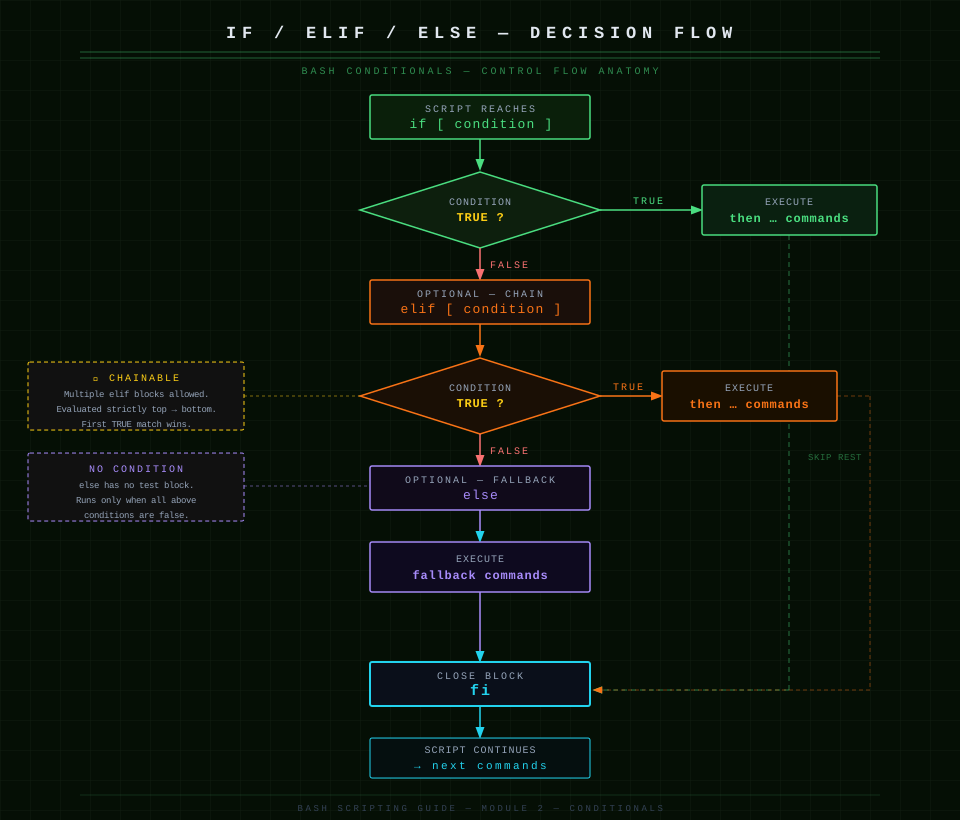
The standard conditional in Bash starts with if, checks a condition, and then runs commands:
if [ condition ]; then
    commands
elif [ another_condition ]; then
    commands
else
    commands
fi
The [ ] are actually a special Bash command called test. The spaces around the brackets are mandatory. For example:
num=10
if [ "$num" -gt 5 ]; then
    echo "Greater than 5"
else
    echo "5 or less"
fi
Here, -gt means "greater than". Bash checks if $num is bigger than 5 and runs the appropriate branch.
[[ ]] is a safer Bash-only version. Inside it, you don't have to worry about quoting variables or weird word splitting, and it supports pattern matching:
filename="test.txt"
if [[ $filename == *.txt ]]; then
    echo "This is a text file"
fi
== *.txt checks if $filename ends with .txt.
5. Loops
Loops let you repeat commands. Bash has multiple types:
-
For loop — iteration over a list:
BASHfor var in 1 2 3; do echo $var doneBash runs
echo $varonce for each item in the list: first 1, then 2, then 3. -
C-style for loop — literally like in C:
BASHfor ((i=0; i<5; i++)); do echo $i donei=0starts the counter.i<5is the condition to continue looping.i++increasesiby 1 after each loop. -
While loop — runs until condition becomes false:
BASHcount=1 while [ $count -le 3 ]; do echo "Count is $count" ((count++)) done[ $count -le 3 ]checks "is count less than or equal to 3?".((count++))increases count by 1 each loop. The loop stops when the condition becomes false.
6. Functions
Functions are reusable bundles of commands:
#!/usr/bin/bash

# Define a function that greets a user
greet_user() {
    local name=$1       # $1 is the first argument passed to the function
    local age=$2        # $2 is the second argument
    echo "Hello, $name! You are $age years old."
    echo "Number of arguments passed to this function: $#"
    echo "All arguments: $@"
}

# Call the function with arguments
greet_user "John" 17
greet_user "Jane" 25
Explanation:
greet_user()defines the function.- Inside the function:
local name=$1grabs the first argument passed when calling the function.local age=$2grabs the second.$#counts how many arguments were passed.$@expands to all arguments. We call it twice with different names and ages. - Using
localensuresnameandageexist only inside the function — outside, they don't exist.
Module 3: Data, I/O, and Script Safety
Now that we have a handle on Bash syntax, we can move to more advanced subtopics.
1. Arrays
Arrays store multiple values in one variable:
array=(one two three)
echo ${array[0]}       # prints first element: one
echo "${array[@]}"     # prints all elements safely: one two three
"${array[@]}" keeps each element as-is, even if it contains spaces. Without quotes, Bash splits each word separately.
There are also associative arrays (like dictionaries):
declare -A assoc
assoc[name]="John"
assoc[age]=17
echo ${assoc[name]} # prints Johndeclare is needed for making a special variable and -A tells Bash that this is an associative array. assoc is the name of the array.
2. Redirection
Redirection tells Bash where input comes from and where output goes:
echo "Hello" > file.txt             # send output to file.txt, overwrite
echo "Hello again" >> file.txt      # append output
ls nonexistent 2> error.log         # redirect error messages
ls > output.log 2>&1               # redirect both stdout and stderr
cat < file.txt                      # reads input from a file
cat file.txt | grep "Joshua"        # output of first command becomes input of second
diff <(ls dir1) <(ls dir2)         # process substitution — makes output look like a file
# Here it compares two directories as if they are files (diff won't work otherwise)
3. Parameter Expansion
Bash can work with variables in advanced ways:
echo ${VAR:-default}   # if VAR is empty, use "default"
echo ${VAR:=default}   # if VAR is empty, set it to "default"
echo ${VAR:+other}     # if VAR exists, use "other"
echo ${VAR:?error}     # exit script if VAR is empty
We can also do string manipulation:
text="HelloWorld"
echo ${text:0:5}             # first 5 characters (starts from 0) → Hello
filename="file.txt"
echo ${filename%.*}          # remove extension → file
sentence="one two one"
echo ${sentence//one/three}  # replace all 'one' → three two three
4. Arithmetic
One of the main differences between you and Bash is that it can do math:
((a = 5 + 3))   # sets a to 8
((a++))         # increment by 1 → a=9
b=$((a * 2))    # b=18
$(( ... ))calculates and returns a value.(( ... ))can be used directly in conditionals:
if (( a > 10 )); then
  echo "Greater than 10"
fi
5. Special Variables
Bash has built-in variables you can use everywhere:
$0→ script name$1, $2, ...→ first, second, etc., command-line arguments$@→ all arguments as a list$#→ number of arguments$?→ exit status of last command (0 = success, anything else = error)$$→ process ID of this script$!→ process ID of last background job
echo "Script name: $0"
echo "First argument: $1"
echo "Number of arguments: $#"
# And so on
6. Error Handling
Your scripts will fail sooner or later for various reasons — half the time it won't even be your fault. The interesting thing about Bash is that by default it will continue running after an error, which can sometimes be dangerous.
-
Exit on Error
BASHset -e # Script exits immediately if any command fails (returns non-zero exit code)set -eprevents cascading failures. -
Exit on Undefined Variables
BASHset -u # Script exits if you reference a variable that doesn't existThis catches typos. If you write
$USRNAMEinstead of$USERNAME, Bash will error out instead of silently treating it as empty. -
Pipefail
BASHset -o pipefail # Makes pipelines return the exit code of the first failed commandNormally,
command1 | command2only checks ifcommand2succeeded. Withpipefail, ifcommand1fails, the whole pipeline fails. -
Combine Them (Best Practice)
BASH#!/usr/bin/bash set -euo pipefail # Now your script is strict: no silent failures, no undefined variables, no broken pipes -
Check Exit Codes Manually
BASHif ! ping -c 1 192.168.1.1 &>/dev/null; then echo "Host is down" exit 1 fi$?holds the exit code of the last command (0 = success, anything else = failure). You can check it directly:BASHping -c 1 192.168.1.1 if [ $? -ne 0 ]; then echo "Ping failed" fi -
Trap Errors
BASHtrap 'echo "Error occurred on line $LINENO"' ERRThis catches errors and tells you exactly where they happened. Useful for debugging long scripts.
-
Example: Robust Script Template
BASH#!/usr/bin/bash set -euo pipefail # Trap errors and show line number trap 'echo "Error on line $LINENO. Exiting." >&2' ERR # Check if required command exists if ! command -v nmap &>/dev/null; then echo "nmap is not installed. Install it first." exit 1 fi # Your actual script logic here echo "Script running safely..."Key takeaway: Always use
set -euo pipefailat the top of your scripts unless you have a specific reason not to. It saves you from debugging silent failures later.
Module 4: Example Code and Conclusion
Here is a complete script that puts everything together so you can see what goes where:
#!/usr/bin/bash
set -euo pipefail
trap 'echo "Error on line $LINENO" >&2' ERR

# 1. Variables + parameter expansion
USER_NAME="${1:-Martin}"     # default if not provided
AGE=17
unset TEMP_VAR || true

# 2. Quoting + command substitution
TODAY="$(date)"
echo "User: $USER_NAME"
echo "Today is $TODAY"
echo 'This $WILL not expand'

# 3. Command chaining
mkdir -p demo_dir && cd demo_dir || exit 1

# 4. Conditionals
if [[ "$USER_NAME" == M* ]]; then
    echo "Name starts with M"
else
    echo "Name does not start with M"
fi

# 5. Loops
for i in 1 2 3; do
    echo "For loop value: $i"
done

count=1
while (( count <= 2 )); do
    echo "While loop count: $count"
    ((count++))
done

# 6. Function
greet() {
    local name="$1"
    echo "Hello, $name"
    echo "Args count: $#"
}
greet "$USER_NAME"

# 7. Arrays
tools=(nmap curl git)
echo "First tool: ${tools[0]}"
echo "All tools: ${tools[@]}"

declare -A person
person[name]="$USER_NAME"
person[age]=$AGE
echo "Assoc name: ${person[name]}"

# 8. Redirection + pipes
echo "log entry" > output.log
ls nonexistent 2> error.log || true
cat output.log | grep log > filtered.log

# 9. String parameter expansion
FILE="report.txt"
echo "Filename without ext: ${FILE%.*}"

TEXT="one two one"
echo "${TEXT//one/three}"

# 10. Arithmetic
((x = 5 + 3))
((x++))
y=$((x * 2))
echo "Math result: $y"

# 11. Special variables
echo "Script: $0"
echo "Args: $@"
echo "PID: $$"

# 12. Manual error check
if ! command -v git &>/dev/null; then
    echo "git missing"
    exit 1
fi

echo "Script finished cleanly"
The output will be:
User: Martin
Today is Sat Jan 24 02:34:14 PM +04 2026
This $WILL not expand
Name starts with M
For loop value: 1
For loop value: 2
For loop value: 3
While loop count: 1
While loop count: 2
Hello, Martin
Args count: 1
First tool: nmap
All tools: nmap curl git
Assoc name: Martin
Filename without ext: report
three two three
Math result: 18
Script: ./test.sh
Args:
PID: 15634
Script finished cleanly
Toy around with this script to understand every part of it.
Conclusion
Bash is an essential tool in cybersecurity, but we are far from done yet. A real security practitioner must be able to chain tools, automate workflows, and extract maximum value from simple commands. That level comes later.
The next step is Python. A cybersecurity-focused Python methodology will be released in early February — and after you understand both languages, it will be time to combine them by writing a program that will be useful as a portfolio project or simply for personal use. Thank you for your time.